Website · Site editor & page builder
One visual editor for your whole website
Start from one of ten themes, then edit site styles, header, footer, the home page and any page in the same editor, on your real website, with almost 100 widgets and nothing going live until you press Publish.
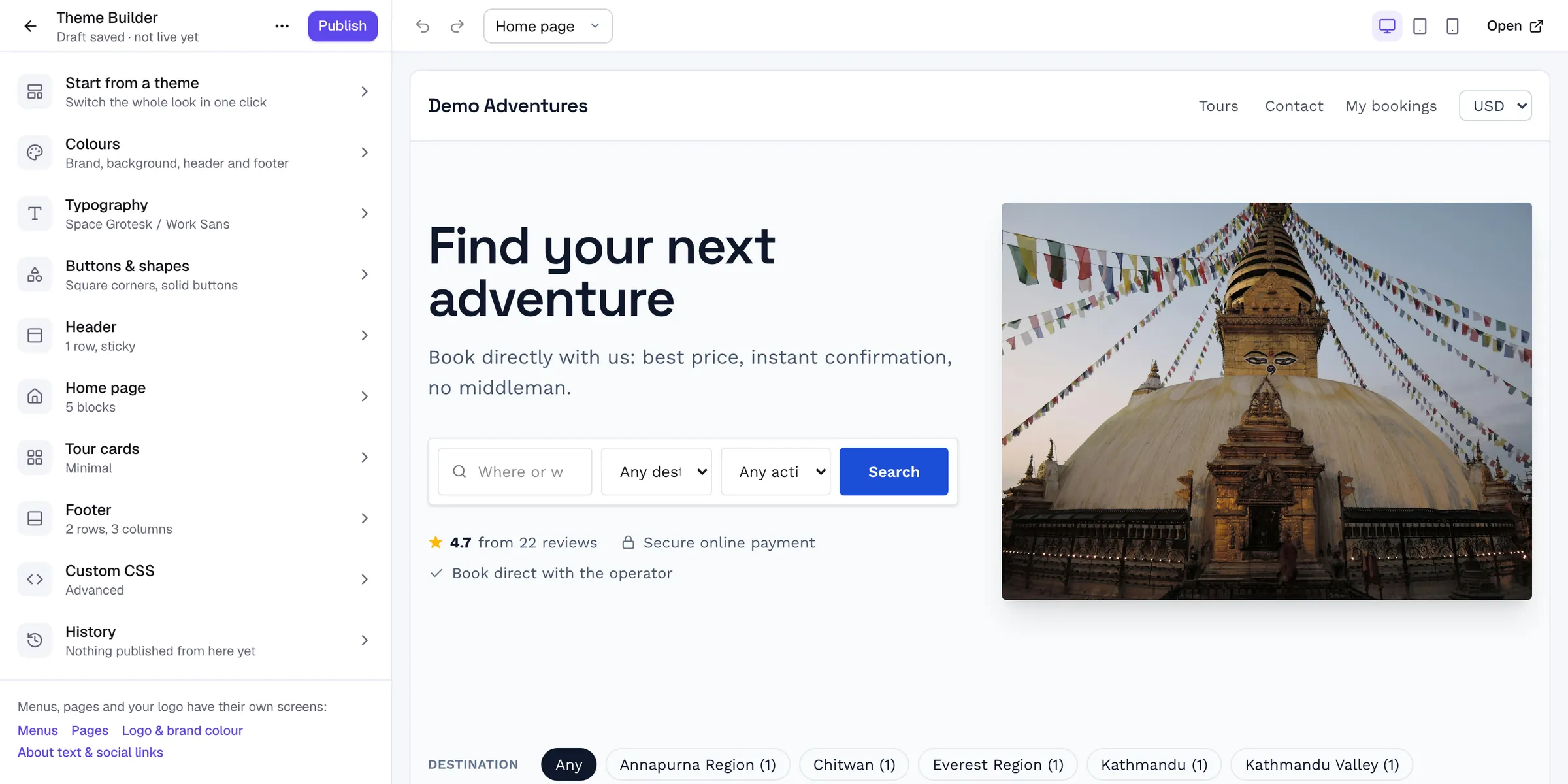
Overview
Site editor & page builder at a glance
Your theme sets the starting look: colours, fonts, shapes, header, footer and home page. Every theme is built for selling tours, with tour search, clear prices and booking buttons in the right places, and every one works on phones.
Then everything is edited in one place: site styles, the header and footer builders, the home page and pages built with the page builder share one canvas, one undo history, one autosaved draft and one Publish. Click anything on your real website to edit it, switch between desktop, tablet and phone, and drag widgets where you want them.
Capabilities
What's included
-
Ten themes
Six themes on every plan (Summit, Expedition, Heritage, Coastal, Jungle, Minimal) and four premium themes on Growth and Scale. Switching keeps your content.
-
Almost 100 widgets
Containers, text and media, forms, reviews and trust badges, tabs and accordions, and live tour, departure, booking, voucher, pass and rental widgets. A few premium widgets come with Growth and Scale.
-
Header and footer builders
Rows and zones for your logo, menus, search, phone, a Book now button, currency, language and My bookings. Sticky or transparent, with a separate phone header.
-
Per-device styles
Typography, colours, spacing, width and visibility per device, global colours and fonts, Layers, copy and paste style, and keyboard shortcuts.
-
Templates and library
Whole-page templates and ready-made blocks drawn in your colours, plus your own saved templates.
-
Drafts, schedule and history
Autosaved drafts, a 7-day preview link, a list of what changes before you publish, scheduled publishing and the last 30 published versions to restore.
Why a tour website needs more than a general page builder
A general website builder knows about headings, images and buttons. It does not know that a tour has departures, that prices change with the season, or that a Book now button has to lead to a date with seats left. Operators who build on a general tool end up typing prices and dates into text boxes, and those copies go out of date the moment something changes in the booking system.
In Tourtify the website and the bookings share one source. The tours, upcoming departures, booking, reviews, voucher, pass and rental widgets read live data, so when you change a price or close a departure, every page that shows it changes too. You design the page once and the content keeps itself current.
Set global colours and fonts before you style anything else
Site styles hold your primary and accent colours, page, card, text, header and footer colours, and your heading and body fonts. Elements that use a global colour follow it. If you later change the primary colour from a deep green to a navy, every button, link and badge set to Primary changes with it, on every page.
The trade-off is control against consistency. You can give any element its own colour, but each one you set by hand is one you will have to find again when you rebrand. A good rule is to use global colours for anything that repeats and a custom colour only for a one-off, such as a seasonal banner.
The same applies to devices. Each setting has device dots that show whether tablet or phone has its own value; a device without one uses the larger size (Same as Desktop). Start on desktop, then change only what needs to be different on a phone, such as a smaller hero heading or a single column.
Worked example: launching a winter sale page without touching the live site
Say you want a Winter departures page live at 08:00 on Friday. On Monday you create a page in Website › Pages, choose Page builder and start from the Seasonal offer template. You add an upcoming departures widget, a featured testimonial and a call to action. Everything autosaves as a draft and the status pill reads Not published yet.
On Tuesday you choose Copy preview link and send it to your business partner. The link works for seven days without signing in. On Wednesday you change the hero photo after their feedback. On Thursday you press Publish, read the list of what will change, and choose Schedule for Friday at 08:00. The draft goes live as it stands at that time, and you can cancel the schedule if plans change.
If the page needs to come down after the sale, History › Published versions keeps the last 30 published versions, so you can load an earlier one into the draft and publish it again.
Header and footer: what travellers look for first
Travellers who have already booked look for My bookings; travellers who are ready to book look for a phone number or a Book now button. Put both in the header, and use the separate phone header so the menu drawer, logo and one clear button fit on a small screen. A sticky header keeps those links in reach on long tour pages.
Footer widgets such as Contact and About read from your business details and site details, so update your phone number once in Settings and every page follows. The Tours, Destinations and Review rating widgets stay current on their own.
Common mistakes to avoid
Activating a different theme discards unpublished changes in the editor, so publish or save them first. Previewing is safe: Live preview shows any theme with your content and changes nothing.
Do not rely on Hide on phones to remove important information. If something matters to a traveller on a phone, rework the layout instead. Use hiding for decoration, such as a large background photo that slows a small screen.
Keep custom CSS for small adjustments. Element styles are checked on the server, and Custom HTML removes scripts, styles, iframes and event handlers when you save, so it is not a way to add widgets from other services. Embeds accept YouTube, Vimeo, Google Maps, Instagram posts, OpenStreetMap and Spotify only.
How it works
Site editor & page builder, step by step
- 1
Choose a theme
Preview any theme with your own content, then activate it.
- 2
Edit visually
Change site styles, header, footer and pages on your real website.
- 3
Preview
Check desktop, tablet and phone, or share a private preview link.
- 4
Publish
Go live now or schedule it, and restore an earlier version any time.
Integrations
Extend site editor & page builder
Switch these on in one click from your console.
Website
Currency switcher
Let travellers pay in their own currency. You set real prices per currency on each tour (no surprise exchange rates); tours you haven’t priced stay in your main currency, clearly labelled “Charged in …”, optionally with an approximate converted price.
Website
White label
Remove every “powered by Tourtify” mention from your website, emails, PDFs and proposals, so travellers only ever see your brand.
Can I copy a design to another business?
Yes. On the Themes screen, Export saves the design as a JSON file and Import theme loads it into another business. Save a copy keeps a backup in My themes.
What happens to premium widgets if I move to a lower plan?
They stay saved on the page but are not shown on your website until you upgrade again, so nothing is lost.
Can I add tracking scripts to a page?
Not through page content: scripts are removed from Custom HTML for safety. Analytics and tracking are handled by plugins such as Google Analytics.
Will switching themes delete my content?
No. Switching keeps your hero text and photo, home page blocks, menus and footer. Premium themes may add their signature blocks, which you can hide or remove.
Do I need to know code?
No. Everything is visual. Custom CSS is available for fine-tuning if you want it.
Does the editor slow my website down?
No. Visitors get plain, server-rendered pages; the editor's code never loads on your website.
Can two people edit at once?
If the draft changes in another tab or by a teammate, the editor warns you and lets you load their version or keep yours.
Related features
Works well with
Start selling tours direct
Try Tourtify free for 30 days. Add your tours, pick a theme and take your first booking today.